Saturday, 10 August 2013
Tuesday, 4 December 2012
Winrar v4.0.1 (2011) Free Mediafire
Winrar v4.0.1 (2011)

What’s new on this build :-
Added support for file sizes stored in binary format in TAR archives.
Some TAR archives use the binary size format instead of octal
for files larger than 8 GB.
Bugs fixed:-
a) “Repair” command failed to properly reconstruct structure
of RAR archives, which contained at least one file with packed
size exceeding 4 GB.
This bug did not affect the recovery record based repair.
It happened only if recovery record was not found and WinRAR
performed reconstruction of archive structure;
b) even if “Do not extract paths” option in “Advanced” part of
extraction dialog was set as the default, WinRAR still unpacked
file paths if called from Explorer context menu;
c) after entering a wrong password for encrypted ZIP archive,
sometimes WinRAR ignored subsequent attempts to enter a valid
password;
d) “Wizard” command did not allow to create self-extracting
and multivolume archives, when compressing a single folder
or a file without extension;
e) “Import settings from file” command did not restore multiline
comments in WinRAR compression profiles;
f) when converting RAR volumes having name1.name2.part#.rar name format,
“Convert archives” command erroneously removed “.name2″ name part.
So resulting archive had name1.rar file name instead of expected
name1.name2.rar;
g) RAR could crash when creating a new archive with -agNNN switch
if archive number in generated name was 110 or larger;
h) WinRAR failed to display non-English file names in 7-Zip archives
properly if they used a non-default code page. It was the display
only problem, such names were unpacked correctly.
Description :-
WinRAR is a powerful archive manager. It can backup your data and reduce the size of email attachments, decompress RAR, ZIP and other files downloaded from Internet and create new archives in RAR and ZIP file format.
Features :-
* Using WinRAR puts you ahead of the crowd when it comes to compression by consistently making smaller archives than the competition, saving disk space and transmission costs.
* WinRAR provides complete support for RAR and ZIP archives and is able to unpack CAB, ARJ, LZH, TAR, GZ, ACE, UUE, BZ2, JAR, ISO, 7Z, Z archives.
* WinRAR offers a graphic interactive interface utilizing mouse and menus as well as the command line interface.
* When you purchase WinRAR license you are buying a license to the complete technology, no need to purchase add-ons to create self-extracting files, it’s all included. One price, one payment, once.
* You also receive the benefit of a life-time use of the WinRAR archiver. No upgrade fee to pay. When a new release is made, simply download and install, your license is valid for life.
* WinRAR is easier to use than many other archivers with the inclusion of a special “Wizard” mode which allows instant access to the basic archiving functions through a simple question and answer procedure. This avoids confusion in the early stages of use.
* WinRAR offers you the benefit of industry strength archive encryption using AES (Advanced Encryption Standard) with a key of 128 bits.
* WinRAR supports files and archives up to 8,589 billion gigabytes in size. The number of archived files is, for all practical purposes, unlimited.
* WinRAR offers the ability to create selfextracting and multivolume archives.
* Recovery record and recovery volumes allow to reconstruct even physically damaged archives.
* WinRAR features are constantly being developed to keep WinRAR ahead of the pack.
Mediafire Download Link
Download Now
Size: 2 mb
OS : Win XP/2000/Vista/Win 7
Tuesday, 20 November 2012
Driver Genius Professional 11.0 (2012) With Serial key
Driver Genius Pro v.11 (Full)

Driver Genius Professional is a professional driver management tool features both driver management and hardware diagnostics. Driver Genius provides such practical functions as driver backup, restoration, update and removal for computer users. If you often reinstall your operating system, you may not forget such painful experiences of searching all around for all kinds of drivers. If unfortunately you have lost your driver CD, the search will be more troublesome and time-consuming.
Driver Genius Professional is a software that backup and restore drivers.
Features:
* Drivers Backup: Driver Genius can detect and quickly backup drivers installed in system. It can compress the backup drivers to a zip file, self extracting file or an independent executable auto installer program.
* Drivers Restore: You need not install drivers one by one after reinstalling Operating System. Just need only one click you can install all your backup drivers automatically. You can also install drivers in command mode silently. If you need install drivers on multiple PC with the same hardware configuration, Driver Genius can save your much time to reinstall system.
* Drivers Update: Are you still using an old version or beta version drivers? Those faulty drivers always cause compatibility problem. They are the biggest hidden trouble that cause system crash. A suitable drivers can upgrade 50% or even more system performance . There are more than 30,000 devices drivers information in Driver Genius Database that including Motherboard, Sound card, Video card, Network card, Modem, Mouse, Keyboard, Scanner, Printer, Digital device etc. All you need to do is one click, Driver Genius will find out all drivers that need updating. All drivers we offer are official version or WHQL version, you can use them without any compatibility worries.
* Drivers Uninstall: There could be some leftover drivers in your system because of changing hardware or updating drivers. Driver Genius can find out these useless drivers quickly and uninstall them.
* LiveUpdate: We update large numbers of drivers on our website. You can synchronize your database with our download server to get the newest version drivers by Liveupdate program.
Click Here to Download
Install Note:
1. Unpack
2. Install
3. Use Key
4. Enjoy it !
Saturday, 10 November 2012
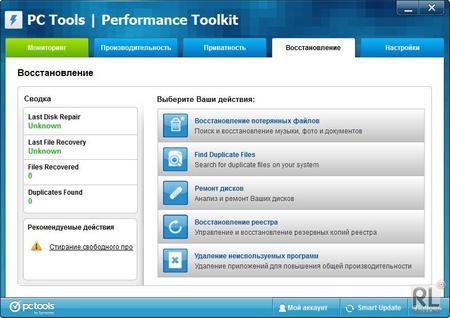
PC Tools Performance Toolkit (2012) V2.1.0.2151
PC Tools Performance Toolkit
offers easy-to-use tools for speeding up your PC, optimizing
performance, and protecting your privacy. It improves your Windows®
experience regardless of your level of expertise by using advanced
technology to boost speed, improve stability, monitor your system, and
tune up services. Additionally, it accelerates start times, recovers
lost data, and repairs hard drives to keep your computer running like
new.
PC Tools Performance Toolkit Key Features
Easy steps and key technologies to boost your computer performance and protect your personal information:
* Optimize Windows® performance
* Clean the Windows registry
* Start Windows faster
* Browse the Internet with confidence
* Recover photos, music and other documents
* Maintain a healthy hard drive
In more detail, PC Tools Performance Toolkit provides the following features to enhance your computer performance:
Speed up your PC:
* Safely repairs invalid entries in your Windows registry
* Start Windows faster
* Customizable scans
* Highly detailed scan results screen
Protect Your Privacy:
* Erase Internet browsing tracks
* Bleach unused hard drive space
* Securely delete files
Protects you from mistakes:
* Backs up repairs
* Recover photos, music and other files instantly from hard drives, USB keys, and other types of portable media
Optimize Performance:
* Optimization
* Registry Compacting
* Defragmentation
* Optimize your system
* System monitors and other information
Revitalize your hard drives:
* Keep your hard drive fast and healthy
* Repair hard drive errors
Installation Note:
1. Install Program (It’ll Ask For Registration Ignore That)
2. Restart PC
3. Copy runme.bat to Installation folder and run
4. Input register data from keygen (If One Key Is Invalid Generate Another)
Plz Click Here to DOWNLOAD

PC Tools Performance Toolkit Key Features
Easy steps and key technologies to boost your computer performance and protect your personal information:
* Optimize Windows® performance
* Clean the Windows registry
* Start Windows faster
* Browse the Internet with confidence
* Recover photos, music and other documents
* Maintain a healthy hard drive
In more detail, PC Tools Performance Toolkit provides the following features to enhance your computer performance:
Speed up your PC:
* Safely repairs invalid entries in your Windows registry
* Start Windows faster
* Customizable scans
* Highly detailed scan results screen
Protect Your Privacy:
* Erase Internet browsing tracks
* Bleach unused hard drive space
* Securely delete files
Protects you from mistakes:
* Backs up repairs
* Recover photos, music and other files instantly from hard drives, USB keys, and other types of portable media
Optimize Performance:
* Optimization
* Registry Compacting
* Defragmentation
* Optimize your system
* System monitors and other information
Revitalize your hard drives:
* Keep your hard drive fast and healthy
* Repair hard drive errors
Installation Note:
1. Install Program (It’ll Ask For Registration Ignore That)
2. Restart PC
3. Copy runme.bat to Installation folder and run
4. Input register data from keygen (If One Key Is Invalid Generate Another)
Plz Click Here to DOWNLOAD

Wednesday, 5 September 2012
Free Recharge 100% Working
i am posting
an very special recharge trick the trick is 100 % working It is
personally Tested by me and it worked very perfectly. Try this it does not have any type of
risk.
Step 1. You Have To Just Sign Up On The below Given Link
Sign Up Here
Step 2. And you Will get Rs. 2 for it after that u have Confirm your E-mail Id and you will get Rs. 2 again with it.
Step 3. You can even send free sms after signing up and you will be paid 2 ps. / sms
Step. 4 Invite your friends and you will be paid Rs. 1 for each sign up through your referal link.
i have mentioned my referal link above
Step 5. When you will reach Rs. 10 on your account u can recharge
In this way u can earn many recharge Try This And Comment about it
Enjoy....!!
Step 1. You Have To Just Sign Up On The below Given Link
Sign Up Here
Step 2. And you Will get Rs. 2 for it after that u have Confirm your E-mail Id and you will get Rs. 2 again with it.
Step 3. You can even send free sms after signing up and you will be paid 2 ps. / sms
Step. 4 Invite your friends and you will be paid Rs. 1 for each sign up through your referal link.
i have mentioned my referal link above
Step 5. When you will reach Rs. 10 on your account u can recharge
In this way u can earn many recharge Try This And Comment about it
Enjoy....!!
Monday, 20 August 2012
Computer Basic Shortcut Keys
The followings are some basic PC shortcut keys that are supported in
most IBM compatible computers. They are also supported in most
application software.
Use at your own risk.
Enjoy..!!
Use at your own risk.
| Shortcut Keys | Supported Window Versions | Description |
| Alt + e | 95, 98, ME, NT, 2000, XP, Vista | Pull down the top Edit menu. |
| Alt + f | 95, 98, ME, NT, 2000, XP, Vista | Pull down the top File menu |
| Ctrl + a | 95, 98, ME, NT, 2000, XP, Vista | Select all text. |
| Ctrl + c | 95, 98, ME, NT, 2000, XP, Vista | Copy selected item(s) (to clipboard). |
| Ctrl + f | 95, 98, ME, NT, 2000, XP, Vista | Find. |
| Ctrl + v | 95, 98, ME, NT, 2000, XP, Vista | Paste copied item(s) from clipboard |
| Ctrl + x | 95, 98, ME, NT, 2000, XP, Vista | Cut. |
| Ctrl + Ins | 95, 98, ME, NT, 2000, XP, Vista | Same as Ctrl + c |
| Ctrl + (left arrow) | 95, 98, ME, NT, 2000, XP, Vista | Move one word to the left at a time. |
| Ctrl + (right arrow) | 95, 98, ME, NT, 2000, XP, Vista | Move one word to the right at a time. |
| Shift + Ins | 95, 98, ME, NT, 2000, XP, Vista | Same as Ctrl + v |
| Shift + Delelte (or Del) | 95, 98, ME, NT, 2000, XP, Vista | Cut. Or permanently delete selected item(s) on Windows Explorer. |
| F1 | 95, 98, ME, NT, 2000, XP, Vista | Help. |
| Home | 95, 98, ME, NT, 2000, XP, Vista | Jump to the beginning of the line or page. |
| Ctrl + Home | 95, 98, ME, NT, 2000, XP, Vista | Jump to the beginning of the document or page. |
| End | 95, 98, ME, NT, 2000, XP, Vista | Jump to the end of the line or page. |
| Ctrl + End | 95, 98, ME, NT, 2000, XP, Vista | ump to the end of the document or page. |
| Shift + Home | 95, 98, ME, NT, 2000, XP, Vista | Set selection (highlight) from current position to beginning of the line or page. |
| Shift + End | 95, 98, ME, NT, 2000, XP, Vista | Set selection (highlight) from current position to end of the line or page. |
| Shift + (left arrow) | 95, 98, ME, NT, 2000, XP, Vista | Set selection (highlight) from current position to the left, one character at a time. |
| Shift + (right arrow) | 95, 98, ME, NT, 2000, XP, Vista | Set selection (highlight) from current position to the right, one character at a time. |
| Shift + (down arrow) | 95, 98, ME, NT, 2000, XP, Vista | Set selection (highlight) from current position to the next line down. |
| Shift + (up arrow) | 95, 98, ME, NT, 2000, XP, Vista | Set selection (highlight) from current position to the next line up. |
Enjoy..!!
Tuesday, 7 August 2012
Photoshop Plastic Font
Step 1
Open a new file in Adobe Photoshop with the
following settings.
Step 2
Select Type Tool (T) and in the Option Bar
select Arial Black, 325 pt, smooth. Then type the word "psd" in lower
case.
Step 3
Change the tool into Move Tool (V). Then in
the Layer palette left click on background layer to target that layer. Now
press shift from the keyboard and left click on the Type layer. Alignment
buttons will be active in the Option bar when more than one layer is selected.
Then click on the Vertical Centers and Horizontal Centers buttons to center
align the type layer.
Step 4
Create a new layer by clicking on the Create a
new layer button below the Layer palette and fill it with white color. Target
both the new layer and the type layer by using the shift click method. Then use
Menu > Layer > Merge Layers to merge them into a single layer.
Step 5
For creating a reflective glossy plastic text
effect we need a bold or chunky round corner type face. Because round edges
catch more light than the corner edge. But edges of Arial Black are corner not
round. So let's explore a quick and easy technique to change any edge from
corner to round. First on "psd" layer apply Filters > Blur >
Gaussian Blur (Radius: 8 px).
Step 6
Then on the same layer Image > Adjustments
> Levels. In the Input Levels area drag the Left (Shadow) Input Slider to
the right and the Right (Highlight) Input Slider to the right. This will remove
or rather convert the resulting grey blurry area produced by the application of
Gaussian Blur and change that area into solid black. Due to that the corner
edges are now rounded.
Step 7
Select the Magic Wand Tool (W) and click on
the black area of the "psd" layer to select the black text. Selection
active, create a new blank layer on top of the "psd" layer by
clicking on the Create a New Layer button below the Layer Palette. Then fill
the selection with 50% gray and also rename the layer as "base
style". Deselect by Select > Deselect or press Ctrl + D.
Step 8
You can delete the "psd" layer as we
don't need it anymore. Double click on the Background layer to convert it to a
normal layer (Layer 0). Now double click on the text "Layer 0" and
rename it to "gradient bg". Then double click on the "gradient
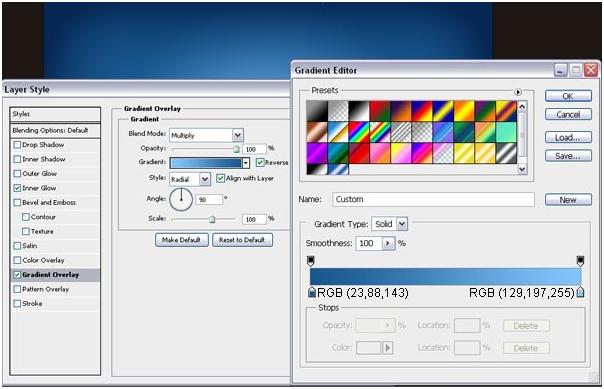
bg" layer to open the Layer Style dialogue box. First create a Radial
gradient in the Gradient Overlay with the following settings.
Step 9
Then create an Inner Glow with the following
settings. This will create a texture variation of the Gradient Overlay.
Step 10
Target the "base style" layer.
Double click on it to open the Layer Style dialogue box. Let's start building
the main Plastic Layer Style. First in the Blending Option section, reduce the
Fill Opacity to 0%. This will make the Plastic Style transparent.
Step 11
Then for the Bevel and Emboss section use
settings from the below screenshot. In the Shading section, for Highlight Mode
select Linear Dodge for a much stronger highlight than Screen blending mode.
Also for the Shadow Mode use Color Dodge to simulate at the edge of the text
light is passing through a translucent object bright look. Below the Bevel and
Emboss is the Contour of Bevel and Emboss, which will basically define the edge
or shoulder of the Bevel. Click on the Contour type and select Gaussian type.
Step 12
Inner Glow settings. Notice that Darken as the
Blend Mode to produce a darker color blend.
Step 13
Outer Glow settings. Blend Mode is Darker
Color to produce a partial darker color blend.
Step 14
Inner Shadow settings. Here Blend Mode is Multiply
to produce a very dark outer edge.
Step 15
Drop Shadow settings. Drop Shadow is not
creating shadow here. But to create the bright light is passing from the edges
of a translucent object.
Step 16
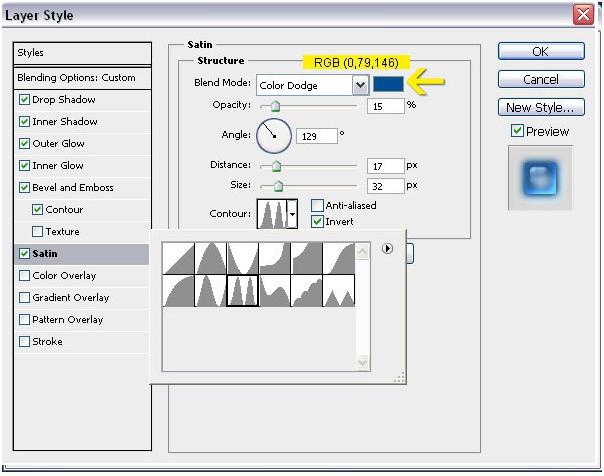
Satin settings for creating bright surface reflections.
Color Dodge as a Blend Mode is helping to do that. In the contour use Ring –
Double for lots of light reflections but for subtlety reduce the Opacity below
the Blend Mode to 15%.
Step 17
After finishing the basic Plastic style.
Step 18
Right click on the "base style"
layer and choose Duplicate Layer. Rename the duplicate layer as "secondary
highlights". Double click on the layer to open Layer Style dialogue box
and uncheck everything besides Bevel and Emboss and Satin. Match below settings.
Step 19
Now click on the Satin Style and use settings
from below. Contour is Ring – Double, but this time with much higher opacity.
Step 20
This is after finishing "secondary
highlights" layer.
Step 21
Duplicate the "secondary highlights"
layer and rename into "primary highlights". Double click on the layer
to open the Layer Style dialogue box. In The Bevel and Emboss match the
settings from below.
Step 22
Drop Shadow settings. This is to boost the
light passing from the edge look more.
Step 23
This is after finishing the "primary
highlights" layer.
Step 24
The Plastic style is complete now. But let's
tweak it little more. Target the "primary highlights" layer and press
Ctrl + Shift + Alt + E to create a copy merged layer on top of it. Rename it to
"upper reflections". Duplicate the layer and rename it to
"surface reflections". Drag or reposition the "surface
reflections" layer below the "base layer". Reduce the opacity of
the "surface reflections" layer to 20%. Now target the "upper
reflections" layer to 10% and change the blend mode to Multiply. Below is
the result.
Step 25
Create a new layer with the name
"glow" on top of "upper reflections" layer and with a soft
brush and white color spots (glow) on top of the highlight areas. Reduce the
opacity to 50%. While working with the Brush tool if you press Alt button, the
Brush tool will temporary change into Eyedropper tool. With that temporary
Eyedropper toll mode select bright blue colors from the highlight areas
directly and paint some bright blue spots also. Reduce the "glow"
layer opacity to 50%. Here's the image with the layers after finishing the glow
painting.
Step 26
Create a Curve Adjustment Layer by clicking on
the fourth button from left below the Layers Palette. In the Curve window
create s-curve or contrast curve to adjust the overall contrast.
Step 27
Now target the "glow" layer and
reduce the opacity to 20%. Duplicate the "glow" layer and rename
"glow 2". Move the layer to top and change the opacity to 40%.
Congratulation, Transparent Plastic Effect is now complete.
Ffinal Results
Subscribe to:
Posts (Atom)